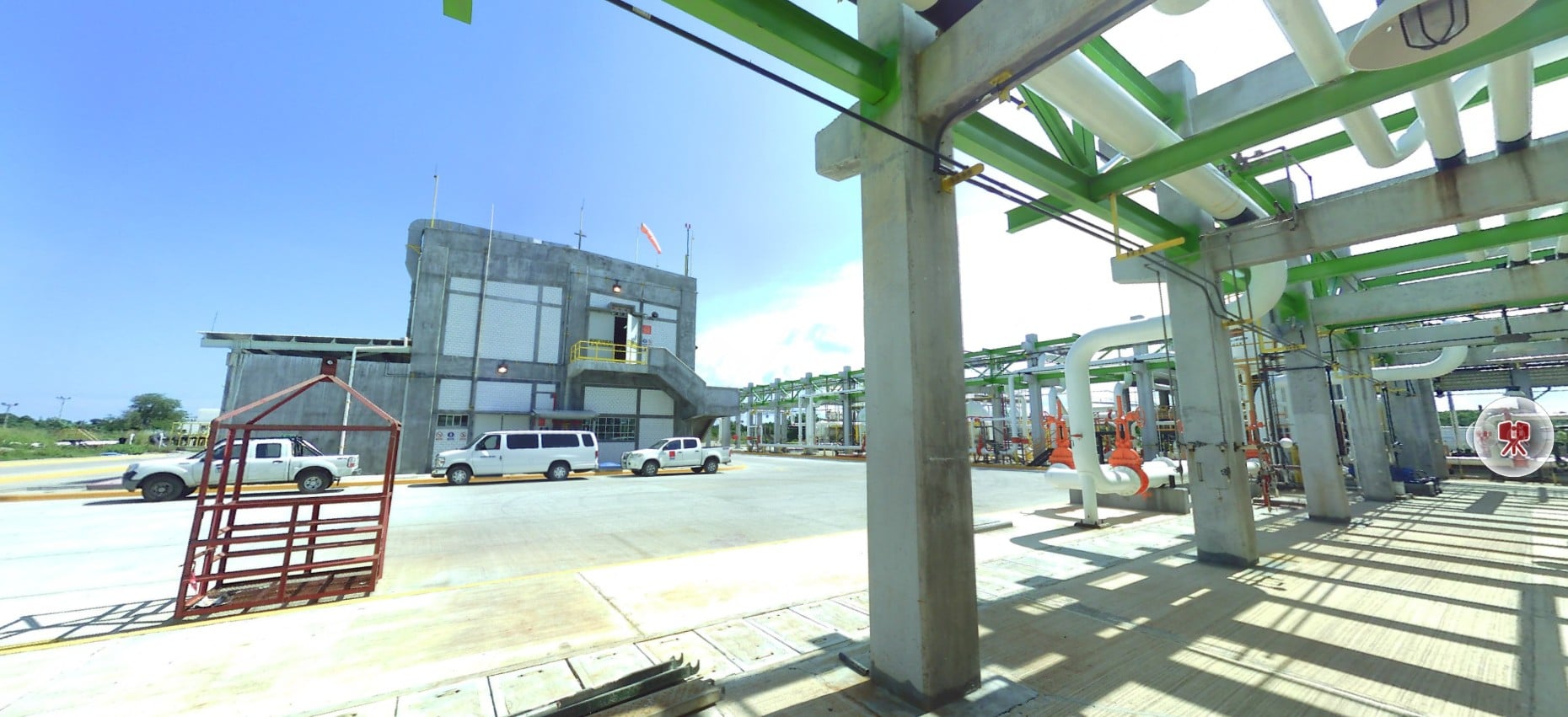
A scan vs BIM comparison measures the distance between a laser scan of what was actually built and the BIM model of what was designed, then flags every area where that distance exceeds an agreed tolerance. It turns "does the building match the model?" from a judgment call into a measurable, repeatable check.
BIM models describe design intent. Laser scans record reality, millimeter by millimeter. On most projects the two drift apart: a duct is shifted to clear a beam, a slab edge is poured 20 mm out, a wall is built slightly off plumb. Individually these deviations are small. Left undetected, they turn into clashes with prefabricated elements, rework, schedule slips and as-built models nobody trusts.
This guide explains what scan vs BIM verification is, when to run it, and the five-step workflow BIM and VDC teams use to verify as-built conditions against the model: align, compare, set tolerances, report, and resolve. It also covers how cloud-based verification differs from desktop workflows, what typical outputs look like, and how scan-vs-scan comparison extends the same logic to progress and change tracking.
What is scan vs BIM verification?
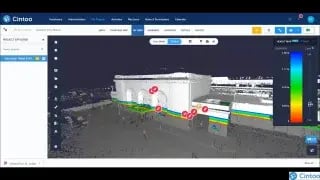
Scan vs BIM verification (also called as-built verification, BIM validation with laser scans, or point cloud to BIM verification) is a quality-control process. A registered laser scan is aligned to the BIM model in a shared coordinate system, and software calculates the deviation between scanned surfaces and model geometry. The result is usually a color-coded heat map: areas within tolerance show one color, and areas in front of or behind the model beyond tolerance show others.
It answers three questions that visual walkthroughs cannot answer reliably:
- Was it built where the model says? Position, elevation and orientation of walls, slabs, columns, MEP runs and equipment.
- Is the model faithful to reality? For scan-to-BIM deliverables, whether the modeler captured existing conditions accurately enough to design against.
- Is the deviation acceptable? Whether the measured difference falls inside the tolerance agreed in the contract or project specification.
When to run a scan vs BIM comparison
The check pays off wherever a decision depends on the model matching reality. The most common moments in a project are:
| Project moment |
What you compare |
Why it matters |
| Before a renovation or retrofit |
Existing-conditions scan vs scan-to-BIM model |
Confirms the model is accurate enough to design against |
| Scan-to-BIM QA/QC |
New scan-to-BIM deliverable vs source scans |
Checks model completeness and accuracy before acceptance |
| During construction |
Progress scan vs design model |
Catches out-of-tolerance work while it is still cheap to fix |
| Before prefabrication or installation |
Scan of the install zone vs fabrication model |
Confirms modules, spools or equipment will fit |
| At handover |
Final scan vs as-built model |
Verifies the as-built record the owner will operate from |
On construction projects, the earlier the check, the cheaper the fix. A slab edge that is out of tolerance can often be resolved with a minor adjustment before curtain wall brackets are fabricated; after installation, the same deviation can mean rework.
The 5-step scan vs BIM workflow
Every reliable as-built verification follows the same five steps: align → compare → tolerance → report → resolve. Skipping or rushing one step undermines the others; a perfect heat map built on a poor alignment shows deviations that are not real.
- Use shared survey control or project base points where possible, then adjust on stable reference geometry such as primary structure. Check alignment visually before trusting any numbers. In Cintoo, you can move and rotate either the scan or the model, so alignment works both ways: scan to BIM/CAD, or BIM/CAD to scan.
- Compare scan surfaces against model geometry. Run a distance calculation between the scan data and the model. The output is a deviation value for every scanned surface relative to the nearest model surface. In Cintoo, the Comparison Tools let users choose which scans to compare and which model serves as the reference, then generate a heat map with the Visual Diff Tool (Cintoo Help Center).
- Apply the agreed tolerance. Set the tolerance band that defines "acceptable" for this element and this project. Everything inside the band is a pass; everything outside it needs review. Cintoo's Distance Adjustment setting changes the tolerance range with a slider or a typed value, for example tightening from ±150 mm to ±100 mm.
- Report the deviations. Turn findings into issues people can act on: a location, a screenshot or saved view, the measured deviation, the responsible trade, and a due date. Use BCF or your coordination platform rather than email so issues stay linked to the model.
- Resolve and re-verify. Decide for each issue whether to fix the work, update the model to reflect the as-built, or accept the deviation with a documented sign-off. Then re-scan and re-compare the affected area to close the loop.
Step 1 in practice: getting alignment right
Alignment is where most verification errors start. Three habits prevent them:
- Register first, align second. Scan-to-scan registration error adds to scan-to-model alignment error. Confirm the registration report meets the project's accuracy requirement before comparing anything.
- Align to what should not have moved. Use primary structure or surveyed control, not the elements you are trying to verify. Aligning on the ductwork you want to check hides the very deviation you are looking for.
- Verify alignment visually. Overlay the model on the scan and check known features, such as column faces, slab edges and openings, before generating a heat map. Cintoo's Visual Check Tool supports this by sliding transparency between the scan and the model.
Step 4 in practice: what a good deviation report contains
A heat map alone is not a report. Reviewers need context to act. Each issue should include:
- The element and its location (level, grid line, zone).
- The measured deviation and the tolerance it breaches.
- A saved view or screenshot showing the scan, the model and the heat map together.
- The responsible party and a requested action: fix, update model, or accept.
Cintoo has documented workflows for BCF export and for pushing issues directly to Autodesk Construction Cloud, Procore and BIM Track. For a full walkthrough of issue handling, see issue tracking and resolution for BIM coordination.
Visual vs cloud-based verification
There are three broad ways to compare a BIM model to a scan. They differ less in the math than in who can take part and how fast findings reach the people who must act on them.
| Approach |
How it works |
Strengths |
Limitations |
| Visual checks |
Overlay model and point cloud in a desktop tool; inspect section by section |
No extra software; useful for spot checks |
Subjective, slow, hard to repeat; no measured deviation per element |
| Desktop deviation analysis |
Specialist software computes a deviation map on a workstation |
Precise; mature tooling for experts |
Large files tied to powerful workstations; results shared as screenshots or exports; few stakeholders can review directly |
| Cloud-based verification |
Scans and models are hosted online; comparison runs and is reviewed in a browser |
Wider team can see the same results; issues created where the deviation is seen |
Requires upload of scan data and an agreed data-governance setup |
Why the delivery model matters
The analysis itself is rarely the bottleneck. The delay comes afterward, when results have to reach the people who need to act on them. Getting the results in front of the right people is. Picture the usual sequence: a scan-to-BIM specialist builds a deviation map on their workstation, exports a batch of screenshots and emails them round. By the time the project manager, the trade contractor and the design team have looked, a few days have passed, and the wall in question may already be boarded up.
Moving verification into the cloud shortens that loop. If everyone can open the scan, the model and the heat map in a browser, the BIM manager can log an issue right on the deviation they spotted, and the trade responsible can click straight through to the same view. Nobody has to install specialist software first.
Cintoo makes this work by converting each scan into a high-resolution 3D mesh, which for terrestrial laser scans is typically 10 to 20 times smaller than the original point cloud (Autodesk Construction Cloud partner listing). That size reduction is why large scan datasets stream smoothly in a browser. BIM and CAD models sit in the same environment as the scans, so designers keep working in Revit, Navisworks or whatever they already use, and the comparison happens in one place.
Choosing an approach
Each approach has its place. Visual checks are fine for a quick, low-stakes look. Desktop deviation analysis still makes sense when a specialist needs to dig deep into individual elements offline. Cloud-based verification earns its keep when results have to reach a distributed team fast, when you're running the same comparison over and over through a project, or when issues need to land in a coordination platform. Plenty of teams use all three: specialists keep modelling on the desktop, and verification and review move to the cloud.
Example outputs and tolerances
Reading a deviation heat map
Most scan vs BIM comparisons end in a color-coded heat map. In Cintoo's Visual Diff Tool, the colors follow whatever tolerance you've set in Distance Adjustment (Cintoo Help Center).
The tool offers two display modes:
- Flat mode gives a simple pass or fail. Green means the scan and the model agree within tolerance; red means the deviation is outside it.
- Normal mode shows a color gradient based on distance. Surfaces behind the reference trend toward blue, and surfaces in front of it trend toward red, with intermediate shades in between. Anything beyond the tolerance takes the end color of the scale.
“In front” and “behind” are measured along the reference surface’s normal, not from your camera viewpoint. Flat mode is handy when you’re signing something off. Normal mode is better when you’re trying to work out what went wrong.
Choosing a tolerance
There's no universal right answer. It depends on the element, what connects to it, and what your contract says. One framework a lot of teams lean on is the USIBD Level of Accuracy (LOA) Specification, which sets out how accurately existing conditions should be measured and represented. It has five levels, each at 95% confidence:
| USIBD level |
Accuracy range |
| LOA50 |
0 to 1 mm |
| LOA40 |
1 to 5 mm |
| LOA30 |
5 to 15 mm |
| LOA20 |
15 to 50 mm |
| LOA10 |
coarser than 50 mm |
Two things to keep in mind. The LOA is about measuring and documenting conditions; the construction tolerances for installed work still come from your project specification and the standards it references. And your verification tolerance can't be tighter than your data. If registration and alignment together are good to ±10 mm, a ±5 mm pass/fail test will mostly show you noise.
A worked tolerance workflow
Here's how a team might work through a single floor. Treat the numbers as examples to adapt, not recommendations for your project.
- Start with structure at a coarse band. Check columns, cores and slab edges at ±25 mm with flat shading. It confirms the alignment and shows up any big errors fast.
- Tighten up at critical interfaces. Re-run the slab edges where curtain wall brackets will attach, using the band from the façade specification. Switch to Normal mode to see which edges are creeping toward the limit.
- Check MEP against its coordination space. Compare the main duct and pipe runs at a band that matches the clearance set aside in the coordination model. In Normal mode, anything at the blue or red end of the scale is eating into space allocated to another trade.
- Log it, assign it, check it again. Raise one issue per out-of-tolerance element, with a saved view, the measured deviation and the responsible trade. Once it's corrected, re-scan and re-compare just the affected zones.
Scan vs scan: extending verification over time
Scan vs BIM tells you whether what's on site matches the design. Scan vs scan tells you what changed on site between two dates. You follow the same five steps, except the reference is an earlier scan rather than the model.
Teams use it to track progress by comparing weekly or milestone scans and seeing what went in between captures. It's also useful for spotting changes nobody planned, like equipment moved during a shutdown or temporary works that never came out. Where a structure or slab might shift, settle or deflect, repeat scans show the movement over time. And on brownfield industrial sites, where there often isn't a reliable model at all, the last scan is usually the best record you've got, so comparing against it is the only practical check.
In Cintoo you can align one scan to another, compare them with a tolerance-based heat map, and step through versions on a timeline. Using both kinds of comparison together gives you the full picture. Scan vs scan shows what changed this week; scan vs BIM tells you whether that change was built to the model. For more on the progress side, see our article on 3D scan progress monitoring techniques.
How teams use scan vs BIM verification in practice
Tietoa, a Finnish engineering firm, supports BIM modelling, construction and renovation work on existing buildings in Finland, from schools and hospitals to apartment blocks, including projects under a framework agreement with the City of Helsinki. The team overlays BIM models on scan data in Cintoo, so engineers and non-technical stakeholders are looking at the same conditions. It uses Cintoo across its projects, from scanning and initial BIM modelling to spotting and dealing with issues during demolition, construction and renovation. The company reports delivering projects 3 times faster (Tietoa customer story).
"In Cintoo, people can see their data and have a better understanding of the conditions whether they're technical or not." — Jaakko Hauru, Head of Unit for Applied Reality & BIM, Tietoa
FAQ: Scan vs BIM Comparison
What is the difference between scan to BIM and scan vs BIM?
Scan to BIM creates a BIM model from laser scan data. Scan vs BIM compares a laser scan against an existing BIM model to measure deviations. The two often run together: a scan-to-BIM model is itself verified with a scan vs BIM comparison before it is accepted.
How do you compare a BIM model to a laser scan?
Align the registered scan and the model in the same coordinate system, run a distance comparison, apply a tolerance, report out-of-tolerance areas as issues, and re-verify after resolution. Most platforms present the result as a color-coded heat map.
What tolerance should I use for as-built verification?
Use the tolerance in your contract or project specification for each element type. Frameworks such as the USIBD Level of Accuracy Specification help define measurement accuracy. Never set a tolerance tighter than the combined accuracy of your scan registration and alignment.
Can I verify BIM with laser scans without desktop software?
Yes. Cloud-based platforms host scans and models online so comparison and review happen in a web browser. Cintoo, for example, streams mesh-based scan data alongside BIM and CAD models and runs scan-vs-model comparison in the browser.
What is point cloud to BIM verification?
It is the process of checking a BIM model against the point cloud it represents, to confirm the model accurately reflects scanned conditions. It is a standard QA/QC step for scan-to-BIM deliverables.
What should I look for in as-built verification software?
Look for reliable scan-to-model alignment, adjustable tolerance-based heat maps, support for your scan and model formats, the ability to create and export issues (BCF or direct integration with your coordination platform), scan-vs-scan comparison for change over time, and access for stakeholders who do not use specialist desktop tools.
How often should scan vs BIM comparisons be run during construction?
Align frequency with risk: before work is covered up, before prefabricated elements are installed, and at key milestones. Many teams pair a regular scan cadence with scan-vs-scan progress tracking, then run scan vs BIM on areas about to be closed in.
Verify your as-built conditions with Cintoo
Scan vs BIM verification is only as useful as the speed at which findings reach the people who act on them. Cintoo's BIM Edition brings laser scans and BIM models into one browser-based environment, with scan-vs-BIM comparison, tolerance-based heat maps, and issues that flow straight into your coordination tools.
Book a demo to see the workflow on a project like yours, or request a free 30-day trial to test it with your own scans and models.



.png?width=48&height=48&name=sensors%20(1).png)
.png?width=65&height=50&name=sensors%20(2).png)


.png?width=69&height=50&name=cloud_done%20(1).png)


.png?width=42&height=49&name=Group%2015496%20(2).png)


.png?width=60&height=60&name=calendar%20(1).png)


.png?width=48&height=45&name=image%20175%20(1).png)